
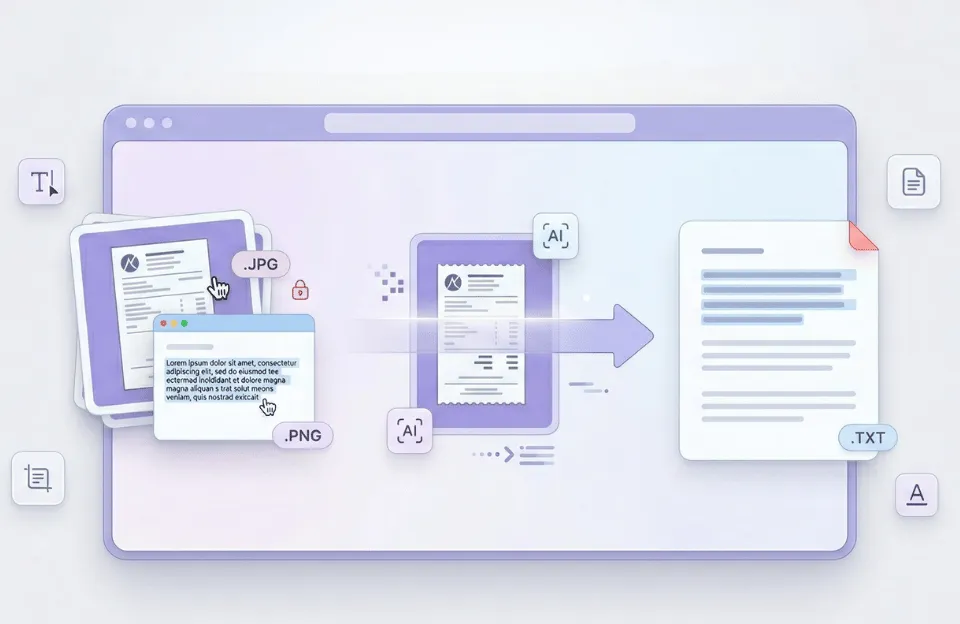
Text in images is visible but not accessible. You cannot select, search, or edit it as you would in a document. This is common with screenshots, scanned files, photos of notes, and receipts.
Rather than retyping content, you can extract text from images using OCR tools. This approach is faster, more accurate, and more practical than manual copying.
This guide covers how OCR works, when to use it, and how to get reliable results.
Why Text Gets Stuck Inside Images
Images contain visual data, not real text. Computers see pixels, not letters, so they cannot process text in images as they do in documents.
This creates a common problem:
- You can read the text
- But you cannot edit or copy it directly
You will often face this when working with:
- Screenshots from websites or apps
- Scanned PDFs
- Photos of whiteboards or books
- Printed documents saved as images
Retyping content from images is slow and can lead to errors. Extracting text with OCR is a more efficient and accurate solution.
What Is OCR and How It Works in 2026
OCR, or Optical Character Recognition, is the technology that turns images into editable text.
Modern OCR uses AI to analyze patterns and context, not just shapes, which improves accuracy.
Here is a simplified version of how it works:
- Binarization: The image is converted into black and white to improve clarity
- Character segmentation: The system separates lines, words, and letters
- Feature extraction: It studies shapes and patterns of each character
- Recognition: The system matches these patterns to known characters
The output is saved in standard formats like ASCII or Unicode, so you can edit and reuse the text.
Copy Text vs Image to Text Conversion
Many people look for ways to copy text from images, but basic tools have limitations.
Tools like quick mobile scanners or built-in features can:
- Break formatting
- Lose columns or tables
- Produce unstructured text
Image to text converters do more than copy text. They turn images into structured files you can use.
You can export the result as:
- TXT for plain text
- DOCX for editing in Word
- XLSX for tables and data
- Searchable PDF for archiving
This method is more reliable, especially when formatting and data accuracy matter.
In practice, you are turning an image into usable content, not just copying text.
When You Should Extract Text from Images
Extracting text from images is useful for everyday tasks and professional work.
For students
- Turn whiteboard photos into notes
- Extract text from textbooks
- Create searchable study materials
For work and business
- Convert receipts into digital records
- Extract invoice details for accounting
- Turn reports into editable documents
For archiving
- Digitize printed letters
- Store documents in searchable formats
- Preserve important records
For automation
- Reduce manual data entry
- Transfer data into spreadsheets
- Improve workflow efficiency
These examples show how OCR improves both speed and accuracy.
The Anatomy of a Scan Ready Image
OCR accuracy depends on image quality. Even small improvements can make a difference.
Contrast and lighting
Strong contrast helps. Black text on a white background works best. Avoid shadows and uneven lighting.
Resolution
Aim for about 300 DPI resolution. Low resolution can cause missing or incorrect characters.
Orientation
Keep text straight. If the image is tilted, accuracy drops. Straighten images before uploading.
Clean background
Noisy backgrounds can confuse OCR. A clean background improves recognition.
Spending a moment to improve image quality saves time later.
Step by Step: How to Copy Text from Image Online
You can turn images into text with a straightforward process.
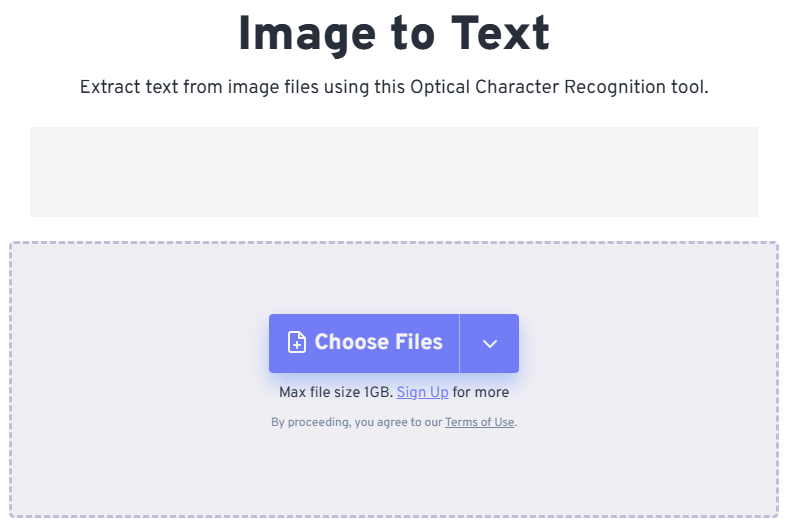
Step 1: Upload your image
Select your file from your device.
Common supported formats include:
- JPG
- PNG
- BMP
- TIFF
- WEBP
- HEIC from iPhones
Some tools support bulk uploads, making it easier to process multiple files at once.
Step 2: Convert image to text
The OCR engine scans the image and extracts the content.
It identifies characters, words, and structure using trained AI models. Many tools rely on engines like Tesseract OCR for this process.
The system converts the visual data into readable text.
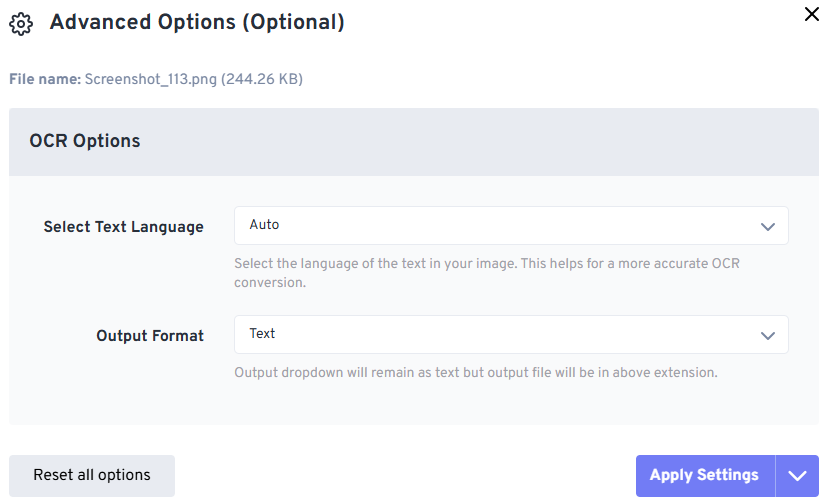
Step 3: Download your file
You can download the text in a structured format, rather than copying it by hand.
Options typically include:
- TXT for quick access
- DOCX for editing
- XLSX for tables
- PDF for searchable documents
For example, tools like FreeConvert’s image to text converter let you upload, convert, and download results in a few steps.
How to Copy Text from an Image on Android and Mobile
You no longer need to install large apps to extract text.
A simple approach works well:
- Take a photo using your phone
- Open your browser
- Upload the image to an OCR tool
- Convert and download the text
This method works on both Android and iPhone. It is often faster and more flexible than using only built-in features.
Handling Difficult Text
Some images are more difficult to process, but small adjustments can improve results.
- Handwritten text: Accuracy may vary, but newer systems use ICR to improve recognition
- Stylized fonts: Simple fonts are easier to detect than decorative ones
- Low contrast images: Adjust brightness or contrast before uploading
- Blurred text: Retake the photo or use a clearer image
Even simple image edits can improve OCR accuracy.
Security and Privacy When Using OCR Tools
Uploading documents online requires trust. Choose tools that protect your data.
Look for features such as:
- 256-bit SSL encryption
- Automatic file deletion after processing
- No long-term storage of uploaded files
These steps help keep sensitive information secure, especially for business or personal documents.
The Future of OCR: From OCR to ICR
OCR technology is still improving.
ICR, or Intelligent Character Recognition, is the next step. It focuses on understanding handwriting and improving context recognition.
Advances in AI are making it possible to:
- Read complex layouts more accurately
- Interpret handwriting more effectively
- Improve recognition in low quality images
As these systems advance, extracting text from images will become even more reliable.
Why Modern Image to Text Tools Outperform Older OCR Sites
Older OCR tools often do not meet current needs. They may have outdated interfaces, limited features, or poor mobile support.
Modern tools improve the experience by offering:
- Faster processing speeds
- Clean and simple interfaces
- Better compatibility with mobile devices
- Batch conversion for multiple files
You can convert multiple files at once, not just one image at a time. This saves time for both personal and professional work.
Final Thoughts
Many people look for a quick way to copy text from images. This works for simple cases, but often fails when accuracy and structure are important.
An image to text converter gives you more control. You turn images into usable, editable content that fits your workflow.
FAQs
How can I copy text from an image for free?
You can upload your image to an online OCR tool and convert it into editable text without installing software.
What is the best format for extracted text?
TXT is useful for simple text. DOCX works well for editing. XLSX is ideal for tables and structured data.
Can I copy text from image on Android?
Yes. You can use your phone’s browser to quickly upload an image and convert it to text.
Why is my OCR result not accurate?
Low resolution, poor lighting, or tilted images can reduce accuracy. Improving image quality usually helps.
Can OCR read handwritten text?
Some tools support handwriting using ICR, but results depend on clarity and writing style.

