
Freelance work runs on agreements. Whether you are a graphic designer sending a project contract, a consultant setting up a retainer, or a developer kicking off a build, the contract is what separates a professional engagement from a handshake deal. Yet many freelancers still rely on emailing Word documents back and forth, chasing printed signatures, or worse, starting work without anything signed at all.
E-signature tools have replaced the old back-and-forth with a faster, more reliable process. You can send a contract, get a client’s signature from their phone, and have the signed copy back in minutes. The real question is which platform fits the way you work, which features actually help freelancers, and how your habits around preparing documents shape the whole experience.
This guide covers how digital signatures work, what makes them legally valid, what to look for in a platform, and how a good PDF workflow brings it all together.
What Are E-Signature Tools and How Do They Work?
At its core, an e-signature tool lets you add a legally recognized signature to a digital document, no printing needed. But there’s more to it than just clicking a button or typing your name.
Most platforms use public key infrastructure (PKI) to create a unique cryptographic key for each signer. When you sign, the platform makes a digital fingerprint of the document. If anything changes after signing, the fingerprint breaks, and the signature is no longer valid. This is what sets a real digital signature apart from just pasting an image of your signature into a PDF.
It’s important to know the difference between the two terms that often get mixed up:
- Electronic signature: Any electronic symbol, process, or sound attached to a document with the intent to sign. A typed name, a drawn signature, or a checkbox can qualify.
- Digital signature: A specific type of electronic signature that uses cryptographic verification to confirm identity and document integrity. It is more secure and often required for regulated industries.
For most freelance contracts, a standard electronic signature is sufficient. Legal frameworks in the major markets, including the ESIGN Act in the US, eIDAS in the EU, and the Electronic Communications Act in the UK, all recognize electronic signatures as legally binding for commercial agreements, provided the intent to sign is clear, and both parties can be identified.
Are E-Signatures Legally Binding for Freelance Contracts?
The short answer is yes, with a few conditions. A contract is enforceable if it has a clear offer, acceptance, something of value exchanged, and both parties intend to be bound. An e-signature counts as acceptance just like a handwritten one, as long as the platform records enough proof of who signed and their intent.
The audit trail is what makes this work in real life. Good e-signature platforms log when the document was opened, when it was signed, the signer’s IP address, email, and device. This record remains with the signed contract and can serve as evidence in the event of a dispute.
There are a handful of document types where e-signatures are not legally accepted. These include wills and testamentary documents in most jurisdictions, certain real estate deeds, notarized affidavits, and court orders. For freelance service agreements, NDAs, scope-of-work documents, and retainer contracts, e-signatures are fully valid.
One practical tip: use a platform that sends both you and your client a signed copy right after signing. If only the vendor keeps the contract and the client never gets a copy, it can cause confusion later.
Key Features to Look for in an E-Signature Tool
Most platforms are not designed for freelancers. Big enterprise tools are often too complex and expensive for solo work. These are the features that actually matter when you’re managing freelance contracts:
Audit Trails
A detailed audit trail is essential. Choose platforms that record timestamps, IP addresses, email checks, and every action taken on the document. If a client ever says they didn’t sign or disagrees with the terms, the audit trail is your proof.
Document Encryption
Contracts usually include sensitive details like project scope, pricing, payment terms, and sometimes personal data. Encryption, both while sending (TLS) and storing (AES-256), keeps your contracts safe from unauthorized access. Always review a platform’s security details before trusting it with client agreements.
Contract Templates
If you send the same agreement often, templates save a lot of time. Set up the document once, add the signature fields, and reuse it for each new client. Templates also help you avoid missing signature spots or sending old payment terms by mistake.
Contract Lifecycle Management
Some platforms do more than just send documents for signature. They track every stage: draft, sent, viewed, signed, and archived. This is helpful if you’re juggling several clients at once. You can see which contracts are still waiting for a signature and send reminders automatically, so you don’t have to chase people down.
Remote Onboarding Support
Most freelancers never meet clients face to face. Your e-signature tool should make it easy for clients anywhere to open, review, and sign documents on any device. Look for mobile-friendly signing, no required logins, and clear email delivery for a smooth remote onboarding process.
Storage and Retrieval
You need to store signed contracts somewhere you can find them years later. Most places require you to keep records for three to seven years. Choose platforms with secure cloud storage and built-in search and download tools.
The 5 Best E-Signature Platforms for Freelancers in 2026
The platforms below are picked for how well they work for freelancers, their security approach, and their pricing for solo budgets. Each one has a clear strength.
1. DocuSign
DocuSign is the best-known name in e-signatures. Its audit trails are detailed, and it meets strict compliance standards for industries like healthcare and finance. The interface can be tricky for new users, and the price is high for solo freelancers. But if you need contracts that stand up to legal review, DocuSign’s documentation and compliance are hard to beat.
- Best for: Freelancers working with large enterprises or in regulated sectors where vendor compliance matters.
- Limitation: The entry-level plan limits templates and can feel like overkill for straightforward project agreements.
2. Dropbox Sign (formerly HelloSign)
Dropbox Sign has a simple interface and a free plan with up to three signature requests per month. For freelancers who don’t send many contracts, that’s usually enough. It connects easily with Google Drive and Dropbox for storage. The audit trail covers the basics, and clients can sign without making an account.
- Best for: Freelancers who want a simple, no-friction tool for sending occasional contracts.
- Limitation: The free tier is restrictive once client volume grows.
3. Adobe Acrobat Sign
Adobe Acrobat Sign is part of the Adobe PDF suite, so it’s a natural fit if you already use Acrobat. It signs PDFs natively, supports advanced digital signatures with certificate checks, and works with Microsoft 365 and Google Workspace. Security and compliance are strong. The price is higher than most, but if you handle lots of documents, the smooth workflow is worth it.
- Best for: Freelancers who work extensively with PDFs and want signing built directly into their document tool.
- Limitation: Subscription cost can be high if you are only using the signing feature.
4. PandaDoc

PandaDoc handles more than just signatures. You can build proposals, attach contracts, add signature fields, and send everything as one document. The free plan gives you unlimited uploads and e-signatures with basic audit trails. If you use separate tools for proposals and contracts now, PandaDoc brings them together in one place.
- Best for: Freelancers who send proposals alongside contracts and want both in one platform.
- Limitation: The free tier lacks payment collection and content library features, which are gated behind paid plans.
5. Signaturely

Signaturely is a simple, affordable tool that covers what most freelancers need without extra complexity. It offers reusable templates, an easy signing process, and a free plan with three signature requests per month. The interface is easy to learn, and clients can sign without making an account. It doesn’t have the advanced compliance of DocuSign or Adobe, but for standard freelance contracts, it works well.
- Best for: Freelancers who want a clean, simple tool without paying for enterprise features they will never use.
- Limitation: Not suitable for high-compliance industries or complex multi-party agreements.
Quick Comparison
| Tool | Free Tire | Audit Trail | Contract Templates | Mobile | Best for |
| DocuSign | Trial only | Advanced | Yes | Yes | Enterprise / compliance-heavy |
| Dropbox Sign | 3 sends/month | Standard | Yes | Yes | Freelancers needing simplicity |
| Adobe Acrobat Sign | Trial only | Advanced | Yes | Yes | PDF-heavy workflows |
| PandaDoc | Free (basic) | Standard | Yes | Yes | Proposal + contract workflows |
| Signaturely | 3 sends/month | Standard | Yes | Yes | Budget-conscious freelancers |
The PDF Workflow That Makes Your Contracts Work Harder
Picking the right e-signature tool is just one step. How you handle your documents before and after signing affects how professional you look, how smoothly contracts get delivered, and how easy they are to find later. These three steps are simple to add and make a real difference.
Step 1: Convert to PDF Before Sending for Signature
Word or Google Docs contracts can be edited. If you send a .docx file to a client, they might change payment terms, deliverables, or liability clauses—sometimes by accident. Even if nothing changes, formatting often breaks across different versions of Word.
Converting your contract to PDF before uploading it fixes both issues. PDF locks the formatting and stops edits. Your layout, fonts, and terms stay just as you wrote them, no matter what device or software your client uses.
You can convert Word documents to PDF quickly using FreeConvert’s Word to PDF tool. It works directly in the browser without installing any software, making it a practical addition to your pre-signing workflow.
Step 2: Compress the PDF Before Uploading or Emailing
Contracts with letterheads, diagrams, or attachments can quickly exceed 5 MB. Many company email servers block or quarantine large files. Even if the file goes through, big attachments can trigger spam filters and slow down delivery.
Compressing your contract PDF to under 1 MB keeps text and logos clear and helps ensure the file is delivered without issues. This matters most if you’re emailing the document yourself instead of using your e-signature platform’s delivery system.
FreeConvert’s PDF compress tool reduces file size without degrading text quality. No account is required, and it handles the compression in the browser.
Step 3: Archive Signed Contracts in a Standardized Format
Once a contract is signed, how you store it matters. Most freelancers end up with a mix of signed PDFs, email threads, and photo attachments from clients. When tax season comes, or there’s a dispute, finding the right file can take longer than it should.
Standardize all your signed contracts and related files as PDFs, using clear naming. If you receive signed documents as images or client addenda as JPEGs, convert them to PDF so everything is in a single format.
FreeConvert supports batch conversion from JPG and PNG to PDF, making it easy to process multiple files at once before filing them alongside your signed contracts.
If you need a quick, lightweight option for day-to-day PDF signing without setting up a full e-signature platform, ProPDF’s sign tool at propdf.com offers a simple browser-based way to add signatures to documents for routine use.
Contract Mistakes That No E-Signature Tool Can Fix
A signed contract is only as strong as its terms. E-signature tools handle the legal side, but the content is up to you. These are the most common mistakes that cause trouble for freelancers later:
- Vague scope of work: Describing deliverables too broadly invites scope creep. Specify what is included, what is not, how many revision rounds are covered, and what happens if the client requests additional work.
- No payment schedule: A single total project fee with no milestone structure often leads to late or disputed payments. Break payment into stages tied to deliverables or dates.
- Missing kill fee or cancellation clause: If a client cancels a project midway, what are you owed? A kill fee clause protects the time and work already invested.
- No late payment terms: State the payment due date, the acceptable grace period, and any late fee percentage. Clients who know there are consequences for late payment tend to pay more promptly.
- Using the same template for every client: A retainer for a long-term client should not look like a one-off project
Frequently Asked Questions
Is an e-signature as legally valid as a handwritten signature?
Yes, in most jurisdictions and for most commercial agreements. The ESIGN Act (US), eIDAS (EU), and the Electronic Communications Act (UK) all give electronic signatures the same legal standing as handwritten ones, provided the signing process captures adequate evidence of identity and intent.
What is an audit trail, and why does it matter for freelancers?
An audit trail is a timestamped log of every action taken on a document: when it was sent, when it was opened, when each field was completed, and when it was signed. If a client disputes a contract, the audit trail is your evidence. It shows exactly when they received the document and when they agreed to the terms.
Can I use a free e-signature tool for client contracts?
For most freelance agreements, yes. Platforms like Dropbox Sign, PandaDoc, and Signaturely all offer free tiers that cover basic contract signing with audit trails. The main limitation is the monthly volume of signature requests. If you are onboarding more than three new clients per month consistently, a paid plan will be more practical.
What file format should I send contracts in before signing?
PDF is the correct format. It prevents editing, preserves formatting across devices, and is accepted by every major e-signature platform. Always convert your contract from Word or Google Docs to PDF before uploading it to a signing platform or sending it directly to a client.
How long should I keep signed contracts?
Most jurisdictions recommend keeping business contracts for at least six to seven years. In the UK, HMRC requires records to be retained for at least six years. In the US, the IRS recommends three to seven years, depending on the nature of the agreement. Storing contracts as compressed PDFs in a cloud folder is the simplest long-term approach.
What is the difference between PDF signing and using an e-signature platform?
PDF signing typically means applying a signature to a document using a PDF tool, sometimes without a formal verification process. An e-signature platform adds identity verification, a timestamped audit trail, and legally defensible documentation of the signing process. For client contracts, the full platform approach is the more reliable choice.
Choosing the Right Tool for Your Freelance Workflow
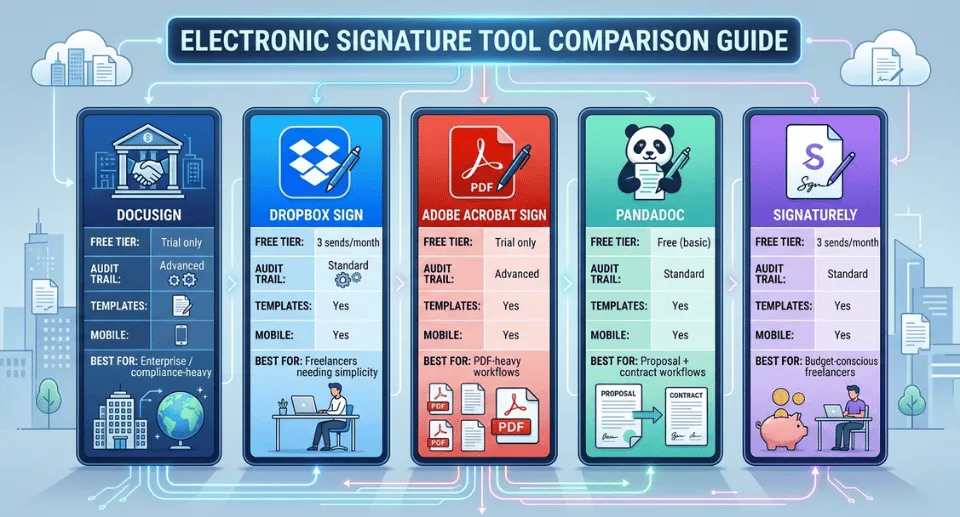
The platform you choose should match how you actually work, not the most feature-rich option on the market. A solo designer sending five contracts a month has different needs than an agency managing thirty ongoing client relationships.
- Solo freelancers with low contract volume: Dropbox Sign or Signaturely on the free tier
- Freelancers sending proposals alongside contracts: PandaDoc
- PDF-heavy workflows requiring strong compliance: Adobe Acrobat Sign
- High-stakes or enterprise client work: DocuSign
No matter which platform you use, your habits around document prep shape how professional your process feels and how well it stands up if there’s ever a dispute. Converting to PDF before signing, compressing before sending, and archiving consistently after signing are small steps that add up to a reliable contract workflow.

