

PDF files keep documents consistent across devices and operating systems, which is why they are used for reports, contracts, invoices, and academic papers. But large PDFs are not always practical. Often, you only need a few pages instead of the whole file.
Knowing how to separate PDF pages helps you organize documents, share only what is needed, and reduce file sizes for email. Instead of sending a 50-page report, you can extract just the sections that matter.
This guide covers several ways to split PDF files. It includes a quick browser method, a more precise online PDF splitter, and practical tips for managing documents efficiently. You will also find advice on security, troubleshooting, and when advanced PDF tools can help.
Why You Might Need to Separate PDF Pages
Large documents often include sections for different audiences or purposes. Splitting them into smaller files makes handling and sharing easier.
Common reasons people split PDFs
Some of the most common use cases include:
- Meeting email attachment limits when sending documents
- Extracting a chapter from a textbook or research paper
- Sharing selected pages with colleagues or clients
- Separating invoices or statements from one combined document
- Removing confidential sections before sending a file
For example, if you receive a 70-page technical report but only need the summary and recommendations, extracting those pages saves time for everyone.
Professional and academic workflows
Splitting PDFs is also common in professional environments.
Examples include:
- Legal teams separating contracts and appendices
- Researchers collecting relevant journal pages
- Teachers distributing specific lesson materials
- Businesses organizing invoice batches
In these situations, knowing how to split PDF files simplifies document handling and supports better collaboration.
Method 1: Separate PDF Pages Using the Browser Print Trick
If you only need part of a document, most modern browsers offer a quick solution. Both Google Chrome and Microsoft Edge let you save selected pages as a new PDF.
Steps in Chrome or Edge
- Open the PDF in your browser
- Press Ctrl + P to open the print menu
- Change the destination to Save as PDF
- Select the page range you want, such as pages 3 to 6
- Save the new file
This method creates a new PDF from the pages you select.
Limitations of the browser method
While convenient, this approach has some limitations.
- Hyperlinks may stop working
- Bookmarks and navigation elements can disappear
- Interactive forms may not function correctly
- Document metadata may be removed
- Large documents require repeating the process multiple times
For frequent tasks or complex documents, a dedicated online PDF splitter gives you more control and efficiency.
Method 2: How to Separate PDF Pages with an Online PDF Splitter
Online tools are often the fastest and simplest way to separate PDF pages. You upload a file, choose how to split it, and download the new documents in seconds.
For example, the FreeConvert Split PDF tool runs in your browser. There is no software to install and no account needed for most tasks.
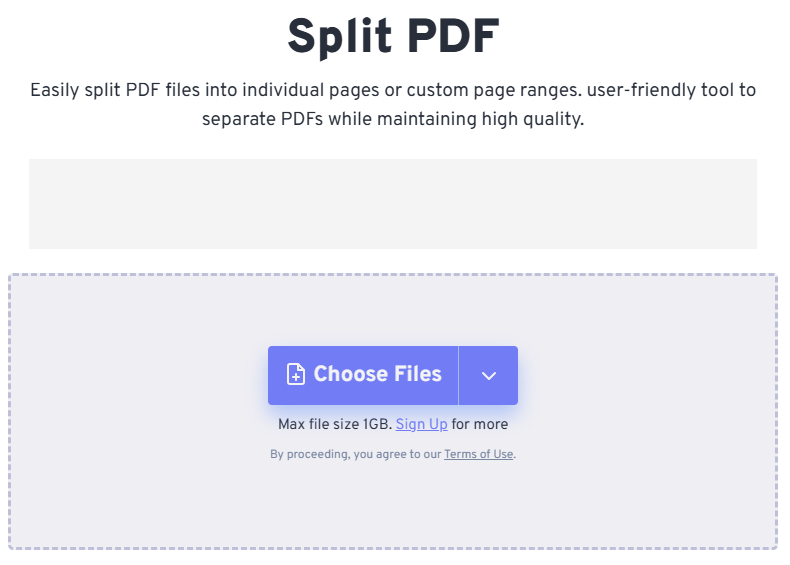
Step by step guide using FreeConvert
- Open the FreeConvert Split PDF page
- Upload your PDF file from your computer, cloud storage, or a link
- Choose how you want to split the document
- Click on “Split Now“
- Download the separated PDFs
Since the tool runs online, it works on desktops, laptops, tablets, and phones.
Different Ways to Split PDFs
A reliable PDF splitter should offer several ways to split documents, so users can handle different structures. FreeConvert includes multiple split modes for precise control over how pages are separated.
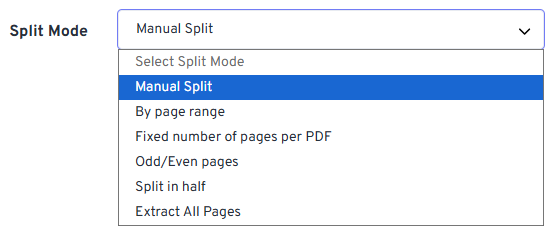
Manual Split
Manual splitting allows you to choose exactly where the document should be divided.
Instead of setting a page range, you mark where each new file should start. This method works well when document sections are different lengths.
For example, a business report might contain sections such as:
- Executive summary
- Market research
- Financial analysis
Manual splitting lets each section become its own file.
Split by Page Range
This method extracts specific pages from a document.
Examples include:
- Pages 1 to 5 for an introduction
- Pages 10 to 15 for technical specifications
- Pages 20 to 25 for appendices
This is one of the most common ways to separate PDF pages when you only need certain parts of a document.
Fixed Number of Pages per PDF
This option divides a document into equal segments based on a page count you select.
Examples include:
- every 5 pages becomes a new file
- every 10 pages becomes a new file
Organizations often use this method for standardized documents like monthly reports or scanned batches of forms.
Odd and Even Page Splitting
Some documents alternate content between odd and even pages, especially when scanned from double sided printing.
This split mode separates:
- All odd numbered pages into one file
- All even numbered pages into another file
This can help reorganize scanned documents or prepare them for editing.
Split in Half
If you want to divide a document into two equal parts, the split-in-half option is a quick solution.
For example, a 40 page document becomes two files:
- Pages 1 to 20
- Pages 21 to 40
This approach is useful when sharing documents between teams for review.
Extract All Pages
The extract all pages option turns every page of a document into its own PDF file.
A 30-page document becomes 30 separate files.
This feature is useful for:
- invoice processing
- document archiving
- separating presentation slides
- managing individual records
Why multiple split modes matter
Different documents require different splitting methods. Having several split modes lets users work efficiently without repeating steps.A flexible online PDF splitter makes it easy to extract the pages you need and leave the rest of the document untouched.
Advanced Output Customization When Splitting PDFs
Splitting a document is only the first step. Organizing the new files is just as important.
Automated file naming
Without clear names, separated files can quickly become confusing.
For example:
Document1.pdf
Document2.pdf
Document3.pdf
Using structured names helps keep documents organized.
Examples include:
Invoice_March_01.pdf
Invoice_March_02.pdf
Clear file names make documents easier to find later.
Metadata retention
PDF files often contain hidden information known as metadata.
Metadata can include:
- title
- author
- subject tags
- creation date
Keeping metadata during splitting preserves document context and makes searching easier in document management systems.
Security and Privacy Standards for Online PDF Tools
Uploading files online can raise privacy concerns. Reliable services address this with clear security practices.
Secure encrypted transfers
Trusted platforms use 256 bit SSL encryption to protect files during upload and download.
Isolated cloud processing
Documents are processed in secure environments where each file is handled separately.
Automatic file deletion
Many platforms use a zero-persistence model, where files are automatically deleted after processing, often within a few hours.
These measures help protect documents with financial data, contracts, or personal information.
Mobile vs Desktop: Choosing the Right Workflow
Today, document workflows often involve multiple devices. Cloud-based PDF tools offer flexibility that traditional desktop software may not.
Advantages of online tools
Online tools allow users to:
- Split PDFs without installing software
- Work from tablets or smartphones
- Access files from different locations
- Use the same tool across multiple operating systems
Desktop software like Adobe Acrobat Pro still offers advanced editing, but many everyday tasks are faster with browser-based tools.
Browser vs Online Tools vs Desktop Software
Each method for separating PDF pages has its strengths.
| Browser print method | Extracting a few pages | No extra tools required | Limited functionality |
| Online PDF splitter | Most document tasks | Fast and flexible | Requires internet access |
| Desktop software | Advanced editing workflows | Full control and editing tools | Installation and subscription costs |
For many users, an online pdf splitter provides the best balance between convenience and functionality.
When Splitting PDFs Is Only the First Step
Separating pages is often part of a larger document workflow.
A typical sequence might include:
- Splitting a large document
- Merging selected pages with another file
- Compressing the result for email sharing
- Adding a digital signature
Switching between different tools for each step can slow down the process.
Comprehensive document workflows
Platforms such as ProPDF provide a more complete environment for document management.
Users can perform multiple tasks in one place, including:
- merging PDF files
- compressing large documents
- editing text or images
- applying password protection
- adding electronic signatures
This kind of integrated system is especially useful for professionals who manage large volumes of documents.
OCR and Scanned PDFs
Some PDFs are created by scanning printed documents. These files contain images instead of real text.
To make scanned documents searchable or editable, software uses Optical Character Recognition, or OCR.
OCR analyzes the image and converts visible characters into digital text.
After OCR processing, users can:
- search for specific words in the document
- copy and paste text
- edit the content
Advanced PDF platforms often include OCR tools to process scanned pages after splitting.
Troubleshooting Common PDF Splitting Issues
Sometimes, splitting a document produces unexpected results. Knowing a few common issues can help you resolve them quickly.
Password-protected PDFs
Some files are encrypted and require a password before editing or splitting is allowed.
Image quality concerns
Image-heavy PDFs can sometimes look compressed or lower quality after processing. This is related to DPI, or dots per inch.
Higher DPI values keep images clear, especially for scanned documents.
Large file sizes
Large PDFs can be hard to send by email. After separating the document, compressing the files makes sharing easier.
Best Practices When Separating PDF Pages
Following a few simple habits helps keep document workflows organized.
- Keep a backup of the original file before making changes
- Use clear and descriptive file names
- Verify that hyperlinks and bookmarks remain intact if they are important
- Check metadata fields when managing professional documents
- Compress files before sending them online
These practices help keep documents organized and easy to manage.
Final Thoughts
PDF documents are one of the most dependable formats for sharing information. But large files can be hard to manage when you only need specific sections.
Knowing how to separate PDF pages lets you extract important content, organize documents more effectively, and simplify sharing.
Quick browser tricks work for simple tasks, but dedicated tools offer more flexibility. An online PDF splitter like FreeConvert offers multiple split modes and fast processing without requiring software installation. For advanced workflows such as editing, merging, compression, or OCR, a platform like ProPDF offers additional capabilities.
The right method depends on your workflow, but efficiently splitting documents is essential for managing digital files.
FAQ
How do I separate PDF pages into multiple files?
You can upload your document to an online PDF splitter, choose the pages you want to extract, and download the separated files as individual PDFs.
Can I split a PDF without Adobe Acrobat?
Yes. Many browser-based tools and online services allow you to split PDFs without installing desktop software.
Is it safe to use an online PDF splitter?
Reliable tools use encrypted connections and automatically delete files after processing to protect user privacy.
Can scanned PDFs be split?
Yes. Scanned PDFs can be separated like regular documents. If you need searchable text, OCR can convert the scanned images into editable text.
What is the easiest way to split a large PDF?
Using an online PDF splitter is usually the fastest option. These tools allow you to extract pages, define ranges, or divide documents into multiple files in just a few steps.

