
Short-form video now leads on TikTok, Instagram Reels, and YouTube Shorts. Billions of daily views come from creators working solo or in teams. Most creators do not struggle with ideas. The real challenge is building a workflow that keeps pace.
This guide breaks down the top short-form video tools for 2026 by the specific job each tool handles. It also covers the strategy behind high-performing clips and the technical steps that often get overlooked. Whether you are repurposing long-form content or starting with short clips, you will find practical sections for your workflow.
What Actually Makes a Short-Form Video Go Viral
Virality is not random. Most videos that reach millions of views share a few core features that drive engagement: high watch-through rates, frequent replays, shares, and comments.
Knowing how these features work helps you choose tools that support effective habits, not just tools with long feature lists.
The 3-Second Hook
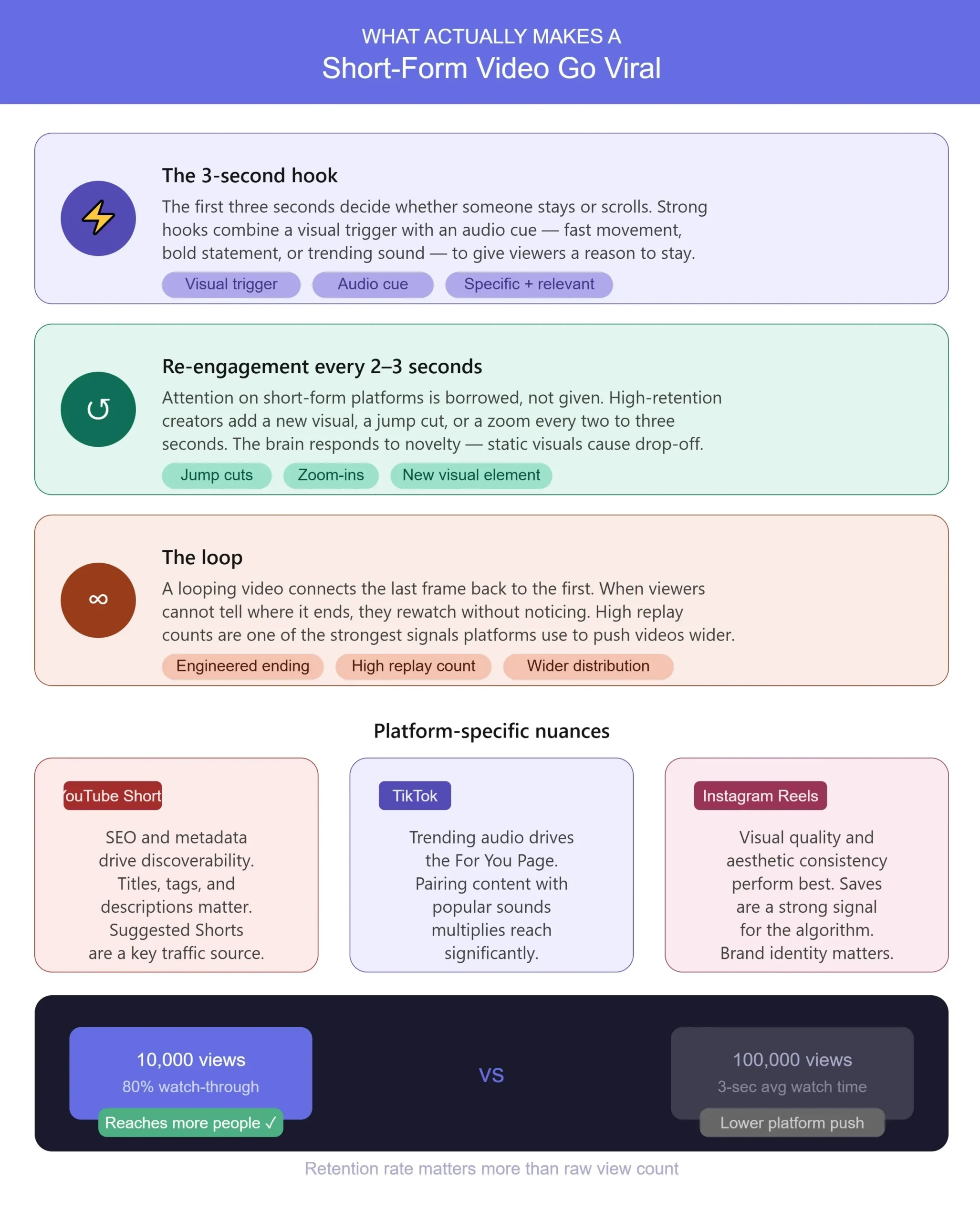
The first three seconds decide if someone keeps watching or scrolls past. Strong hooks use a visual trigger, such as a quick movement or a text overlay, paired with an audio cue, such as a bold statement or a trending sound. The goal is simple: give viewers a clear reason to stay. Hooks work best when they are specific and relevant, not just dramatic.
Re-engagement Every 2 to 3 Seconds
On short-form platforms, attention is earned moment by moment. High-retention videos add a new visual, a jump cut, or a zoom every two to three seconds. This is not just style. The brain responds to novelty, so movement and change keep viewers engaged. Static visuals lead to a drop-off.
The Loop
A looping video connects the last frame back to the first. When viewers cannot tell where the video ends, they often rewatch it without noticing. High replay counts signal to platforms that your video should be promoted further. Well-made loops consistently outperform videos with clear endings.
Platform-Specific Nuances
Each platform rewards different factors. Here is what the main platforms prioritize:
- YouTube Shorts: SEO and metadata matter here more than on other platforms. Titles, tags, and descriptions influence discoverability. Suggested Shorts from existing long-form videos are a strong traffic source.
- TikTok: Trending audio drives discoverability through the For You Page algorithm. Originality and cultural awareness matter, but pairing your content with trending sounds multiplies reach significantly.
- Instagram Reels: Visual quality and aesthetic consistency perform well. Reels templates and text overlays that match a creator’s brand identity tend to attract saves, which is a strong engagement signal for the Reels algorithm.
Retention rate matters more than view count. A video with 10,000 views and 80% watch-through will reach more people than one with 100,000 views but only three seconds of average watch time.
The 1:10 Repurposing Model: How Smart Creators Work
Many creators now use long-form content as their main asset. Instead of making short videos from scratch, they record a single long session and extract 10 or more clips. This 1:10 ratio means one recording can become ten pieces of content.
A one-hour podcast episode can yield 6 to 8 short clips. A 45-minute webinar might contain 10 to 15 quotable, shareable moments. The key is identifying those moments efficiently, which is where AI clipping tools have changed the game.
Source quality sets the ceiling for every clip you create. Recording at 1080p or higher, with clear audio and good lighting, gives AI tools what they need to reframe, caption, and export accurately. Skimping on quality early leads to problems later.
Many repurposing tools now include AI virality scoring. These systems compare your clips to patterns from top-performing content and assign a score before export. While not a guarantee, this helps you pick the best clips when you have too many options.
The Best Short-Form Video Tools in 2026
Tools here are grouped by what they do, not by popularity or price. The best choice depends on your workflow stage, not on search rankings.
AI Clipping and Repurposing Tools
Opus Pro
Best for: Podcast and talk-format content repurposing
Standout feature: Opus Pro uses machine learning to identify the most engaging segments in long videos, assigns a virality score to each clip, and automatically reframes the footage from 16:9 to 9:16 vertical using face detection. The speaker stays centered automatically, which removes a manual editing step that used to take significant time.
Limitation: Best results come from talk-heavy content. Music videos, action sports, and heavily edited footage tend to produce less accurate clip selections.
GetMunch (Munch)
Best for: Multi-platform content scheduling and analysis
Standout feature: Munch goes beyond clipping. It analyzes your content for themes and talking points, then finds clips that match current trends on each platform. The built-in scheduler lets you move from raw footage to a published short in a single session.
Limitation: The trend analysis is English-language focused. Multi-language creators will find the suggestions less relevant.
Vidyo.ai
Best for: Social media clip automation across multiple formats
Standout feature: Vidyo.ai exports clips in several aspect ratios at once, so you can cover TikTok, Reels, and YouTube Shorts with a single export. It also adds captions that match each platform’s style.
Limitation: The free tier has strict export limits. Regular users will hit the cap quickly and need a paid plan to maintain workflow volume.
Recording Platforms with Built-in Clipping
Riverside.fm
Best for: Remote interviews and podcast recording with post-production built in
Standout feature: Magic Clips finds shareable moments right inside Riverside’s editor, immediately after recording. There is no need to export to another tool. With studio-quality local recording, Riverside is efficient for creators who interview guests often.
Limitation: The clipping feature is most useful for talk-format content. Screen-recorded tutorials and gaming footage are better served by other tools.
Descript
Best for: Non-editors who want to edit video by editing text
Standout feature: Descript transcribes your video and lets you edit by deleting words from the transcript. Cutting filler words, pauses, and repeats takes minutes. For creators without editing experience, it makes polished results much easier.
Limitation: Transcription accuracy varies with audio quality. Background noise, accents, and crosstalk produce errors that require manual correction.
Mobile Editing and Reels Templates
CapCut
Best for: Mobile-first creators, beginners, and TikTok content
Standout feature: CapCut is popular for a reason. Its library of Reels templates, trending audio, and AI text effects updates often to match viral trends. The app is easy to learn, and the output looks professional.
Limitation: CapCut is owned by ByteDance, TikTok’s parent company. Creators with concerns about data privacy and platform dependency should factor this into their tool choices.
InVideo
Best for: AI-assisted video generation for social media from text or existing content
Standout feature: InVideo creates short videos from a text prompt or article, automatically adding stock footage, voiceover, and captions. For teams that need high output, it turns a multi-step process into a single workflow.
Limitation: AI-generated videos tend to have a recognizable look. Highly personal or niche content still benefits from human-shot footage combined with InVideo’s editing layer rather than fully generated output.
Caption Generation and Text Overlays
Klap.app
Best for: Automated clip creation with OpenAI-powered captions and auto-reframing
Standout feature: Klap uses OpenAI to automatically generate captions and format them for vertical video. Auto-reframing keeps the active speaker in view as the conversation shifts, saving time for interview content.
Limitation: Processing times may be slower for longer source videos. If you are working under tight deadlines, plan your export queue in advance.
Adobe Express
Best for: Quick caption overlays and branded graphic elements for short clips
Standout feature: Adobe Express adds animated captions, lower-thirds, and branded overlays with simple drag-and-drop tools. It connects with Adobe Creative Cloud, making it easy for users already in that ecosystem.
Limitation: It is a complement to a video editing workflow, not a standalone clipping or repurposing tool. You will need a primary editor alongside it.
YouTube Optimization
TubeBuddy
Best for: YouTube-focused creators optimizing Shorts alongside long-form content
Standout feature: TubeBuddy’s Suggested Shorts finds the best segments from your long videos for YouTube Shorts. Its SEO tools for tags, titles, and descriptions help connect your workflow to better discoverability.
Limitation: TubeBuddy is YouTube-only. Creators focused on TikTok or Instagram will not find much utility here.
Tool Comparison: Which One Fits Your Workflow?
| Tool | Free Tire | Best Platform | AI Features | Captions | Best For |
| Opus Pro | Limited | All platforms | Clipping, scoring, reframe | Yes | Podcasters |
| GetMunch | Trial | Multi-platform | Trend analysis, scheduling | Yes | Marketers |
| Vidyo.ai | Limited | TikTok/Reels/Shorts | Multi-format export | Yes | Multi-platform creators |
| Riverside.fm | Limited | Podcast/YouTube | Magic Clips | Yes | Remote interviewers |
| Descript | Limited | YouTube/Podcast | Text-based editing | Yes | Non-editors |
| CapCut | Yes (full) | TikTok/Reels | Templates, effects | Yes | Beginners, mobile creators |
| InVideo | Limited | All platforms | Text-to-video generation | Yes | Marketers, content teams |
| Klap.app | Trial | TikTok/Reels | OpenAI captions, reframe | Yes | Interview content |
| Adobe Express | Limited | Reels/Shorts | Graphic overlays | Yes | Adobe ecosystem users |
| TubeBuddy | Limited | YouTube Shorts | Suggested Shorts, SEO | No | YouTube creators |
Optimizing Your Video Files for Upload: The Part Most Guides Skip
Editing a strong clip is only part of the process. The steps between export and upload decide if your video reaches viewers at the quality you expect. These three steps are practical, quick, and often missed.
Tip 1: Compress Before You Upload
AI clipping tools frequently export large files. A 60-second clip from a 4K source can weigh 400 MB or more. TikTok and Instagram Reels both impose upload size limits, and even when files meet those limits, the platforms re-encode large files during upload in ways that noticeably degrade visual quality.
Compressing your video to a web-friendly size before uploading preserves your editing quality and avoids platform re-encoding. It also speeds up uploads, which helps when posting to several platforms at once.
FreeConvert’s video compressor handles this in the browser without requiring any software installation. You drag the file in, set your target size or quality level, and download the compressed version, ready for upload.
Tip 2: Convert Your Footage to a Format Every App Accepts
Professional cameras, screen recorders, and some AI tools export in formats that mobile editors and clipping tools may not read correctly. MKV and AVI are common problem formats. Importing these can cause errors, failed uploads, or hidden quality loss that only shows up after publishing.
Convert all your footage to MP4 before starting your workflow to avoid these issues. MP4 with H.264 encoding is the standard for social media and works with every platform and tool listed here.
FreeConvert’s video converter supports conversion from MKV, AVI, MOV, and dozens of other formats to MP4. It runs directly in the browser, handles batch uploads, and requires no account to use.
Tip 3: Turn Your Best Clips into GIFs for Teasers and Previews
A short looping GIF from your best clip can be used as a story preview, newsletter teaser, LinkedIn visual, or thumbnail animation. It is quick to make and has many uses.
FreeConvert’s video to GIF tool lets you pick a start point, set the duration, and export a looping GIF from your video. No extra design software required.
Frequently Asked Questions
What is the best free short-form video tool for beginners?
CapCut is the best free choice for beginners. It works on mobile, needs no editing experience, and includes Reels templates, trending audio, and AI captions for free. Vidyo.ai and Klap.app also have free tiers if you want to try AI clipping before paying.
How do I automatically convert a horizontal video to a vertical one?
Opus Pro, Klap.app, and Vidyo.ai convert horizontal video to vertical automatically using face detection to keep the subject centered. For manual conversion, tools like CapCut and DaVinci Resolve let you set a custom canvas and adjust the frame yourself.
What aspect ratio should I use for TikTok, Reels, and YouTube Shorts?
TikTok, Reels, and YouTube Shorts all use 9:16 vertical video, with a resolution of 1080 x 1920 pixels. Some creators use 4:5 for Instagram to fill more of the feed, but 9:16 is required for YouTube Shorts.
Why does my video look blurry after uploading to TikTok or Instagram?
Blurry uploads are usually caused by platform re-encoding. If your file is too large or has a high bitrate, the platform compresses it using its own settings, which often reduces quality. Compressing your video yourself before uploading keeps more of the original quality.
How long should a short-form video be in 2026?
Ideal video length depends on the platform. TikTok videos between 21 and 34 seconds get the best completion rates, even though longer videos are allowed. YouTube Shorts max out at 60 seconds. Instagram Reels allow up to 90 seconds, but under 30 seconds usually performs better. When unsure, keep it as short as possible while still delivering your message.
Do I need to add captions to every video?
Yes, you should add captions to every vertical video. About 85% of social media videos are watched without sound, so captions are essential for getting your message across. Every AI clipping tool listed here includes automatic captions, so there is no reason to skip them.
Choosing the Right Tool for Your Content Type
No single tool fits every creator. The best setup depends on your starting point, your goals, and your available production time.
- Podcasters and long-form YouTubers: Opus Pro or GetMunch for clip selection, Descript for editing
- Beginners and mobile-first creators: CapCut or InVideo for end-to-end production
- Agencies and content teams: Riverside.fm for recording, Descript or Klap.app for editing and captions
- YouTube-focused creators: TubeBuddy for optimization, CapCut or Descript for editing
- Creators posting across all platforms: Vidyo.ai or Opus Pro for multi-format export
Begin with the tool that fixes your main bottleneck, whether that is clip selection, captions, or format conversion. Add more tools as your workflow expands. Two or three well-chosen tools usually beat a cluttered stack of ten.
Compression, format compatibility, and repurposing do not have to be complicated. When you get these steps right, your content looks the way you intended when it reaches your audience.

