

A remote team moves at the speed of its files. If a project manager in London waits for a designer in Colombo to sync a 120MB presentation, or a contractor cannot open a Pages file on Windows, the real problem is not bandwidth. It is a weak file setup.
Cloud storage is now the backbone of distributed work for small businesses. Most teams pick a platform, upload files, and forget about it. Over time, storage costs rise, sync slows, and finding the right version becomes a headache.
This guide focuses on what matters when choosing cloud storage, compares the top options for 2026, and shares three practical ways to keep your files lean, secure, and fast. The same principles work whether you are a five-person agency or a 30-person remote team.
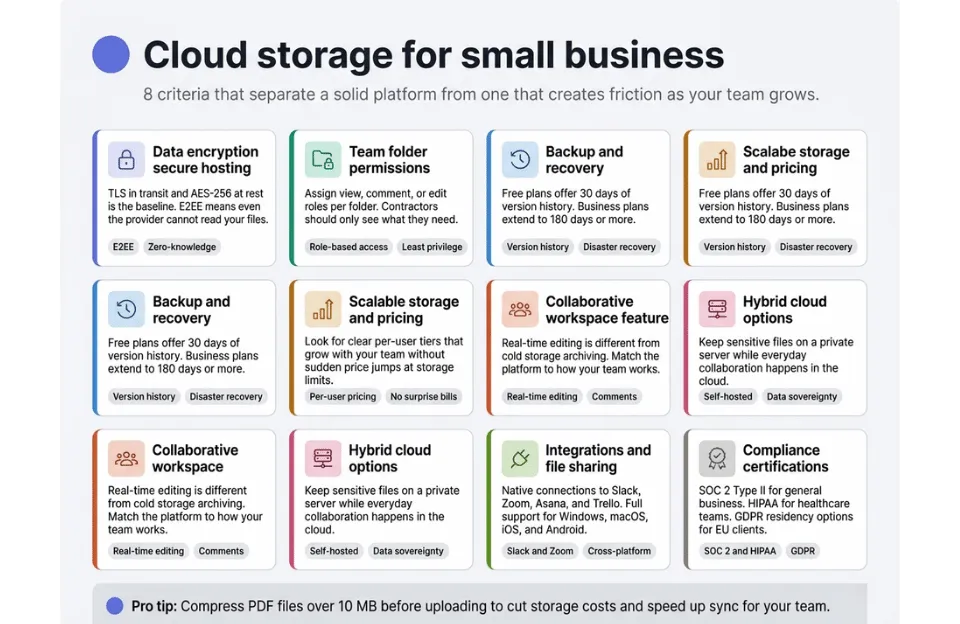
What to Look for in Cloud Storage for Small Business
Most cloud storage platforms are not designed for small businesses. Enterprise tools add too much complexity. Consumer tools miss the controls growing teams need. Here are the criteria that count.
Data Encryption and Secure Data Hosting
Your provider should encrypt files both in transit (TLS) and at rest (AES-256) as a baseline. End-to-end encryption (E2EE) means even the provider cannot access your files. If your business handles contracts, financial records, or health data, E2EE and zero-knowledge setups are worth paying for.
Compliance certifications to look for: SOC 2 Type II for general business, HIPAA for healthcare-adjacent teams, and GDPR data residency options if you operate in or serve clients in the EU.
Team Folder Permissions
Granular access controls help avoid costly mistakes. Assign view-only, comment, or edit roles to each team member or folder. This is especially important when bringing on contractors, clients, or new hires. They should only see what they need.
Backup and Recovery
Version history acts as your safety net. If someone overwrites a proposal or deletes a folder by accident, you can restore it. Free plans usually keep 30 days of history. Business plans often go up to 180 days or more. Combine this with a clear disaster recovery plan and your team is ready for almost any file mishap.
Scalable Storage and Pricing Transparency
Storage costs can creep up quickly. Uploading large, unoptimized files fills up space faster than you think. Choose plans that scale smoothly, with per-user pricing and clear tiers. Avoid platforms that jump in price when you hit a storage limit. Some charge per user, others by total storage. Make sure the pricing model fits your team’s growth before you sign up.
Collaborative Workspace Features
Cold storage is for archiving files you rarely use. An active workspace is where your team edits, comments, and reviews documents together. If your team works inside documents, Google Drive or Microsoft OneDrive are a natural fit. If you mostly share finished files, Dropbox or Box may work better.
Hybrid Cloud Options
Some small businesses, especially in legal, finance, or healthcare, need to keep certain data off the public cloud. A hybrid setup stores sensitive files on a local or private server, while everyday work happens in the cloud. Nextcloud is the top self-hosted choice, giving you full control over your data location.
Integrations and Cross-Platform File Sharing
Your cloud storage should connect with the tools your team already uses. Integrations with Slack, Zoom, Asana, and Trello save time. Support for Windows, macOS, Linux, iOS, and Android means everyone can access files. Sharing should be simple, whether through a direct link, shared folder, or permission-controlled workspace.
The Remote Team Problem Nobody Talks About: Sync Lag and Digital Bloat
Most guides stop at picking a platform. The real challenge comes after, when teams discover why cloud storage often becomes a source of frustration within six months.
Sync lag and digital bloat are the main reasons teams struggle.
Sync lag happens when there is a delay between uploading a file and teammates being able to access the latest version. Even in the same time zone, it is annoying. Across continents and different internet speeds, it slows down the whole team. Large, unoptimized files only make it worse.
Digital bloat is when oversized files pile up over time. Ten people uploading high-res PDFs, raw exports, and uncompressed presentations can fill a storage plan in weeks. Storage costs money, and so does the time wasted waiting for files to sync.
Buying a bigger plan is not the answer. The real fix is to control file size before uploading. The next section covers how to do this.
A key trend for 2026 is AI-powered search on most major platforms. Google Drive, Dropbox, and OneDrive can now find files based on their content, not just file names. This only works if your documents are text-readable. Scanned images saved as JPEGs are invisible to these tools. Converting them to searchable PDFs before archiving unlocks full search capability.
Best Cloud Storage Platforms for Small Business Remote Teams
Here is how the top platforms compare in 2026. Each one has a clear strength. The best fit depends on your team size, your work, and how you manage sensitive data.
Google Drive (Workspace)
Google Workspace is the top choice for teams that work directly in documents. Real-time editing in Docs, Sheets, and Slides is smooth and reliable. The 15 GB free tier works well for individuals, but teams will need a paid plan. AI-powered search is excellent. The main drawback is that Google file formats do not always export cleanly to other formats.
Microsoft OneDrive
If your team uses Word, Excel, or Teams, OneDrive fits right in. It integrates with Microsoft 365 and works seamlessly for those already in that ecosystem. Version history is reliable, and the desktop sync client works well on Windows and macOS. For teams outside the Microsoft world, it is less appealing.
Dropbox Business
Dropbox is known for reliable sync, and it still delivers. It works especially well for creative teams sharing large videos, design files, and presentations. The LAN sync feature lets teams sync files over a local network, saving time in shared offices. Pricing is higher, but the stability and integrations make it worth it for the right team.
Box
Box focuses on security and compliance. It offers the most detailed folder permissions and holds SOC 2, HIPAA, and FedRAMP certifications. E2EE is available as an add-on. For small businesses in legal, healthcare, or finance, Box is worth the higher price. For creative or marketing teams, it may be more than you need.
pCloud
pCloud stands out with its lifetime plan. Teams can pay once for permanent storage instead of a subscription. Client-side E2EE is available as a paid add-on, and the interface is clean. For small businesses watching their budget, pCloud offers predictable costs. Collaboration features are basic compared to Google or Microsoft, but file sharing and storage are solid.
Nextcloud (Self-Hosted)
Nextcloud gives you full control over your data location. You install it on your own server or VPS, so no third party handles your files. E2EE is included. The trade-off is the need for technical setup and ongoing maintenance. For teams with a developer and strict data rules, it is the most private and powerful choice.
Quick comparison at a glance:
| Platform | Free Tier | E2EE | Version History | Best For | Starting Price |
| Google Drive | 15 GB | No | 30 days | Real-time collab | $12/user/mo |
| Microsoft OneDrive | 5 GB | No | 30 days | Microsoft 365 Teams | $6/user/mo |
| Dropbox Business | No | No | 180 days | Large media files | $15/user/mo |
| Box | 10 GB | Yes | Unlimited | Compliance-heavy orgs | $15/user/mo |
| pCloud | 10 GB | Optional | 180 days | Budget-conscious teams | $4.99/user/mo |
| Nextcloud (self-hosted) | Unlimited* | Yes | Unlimited | Full data sovereignty | Free (server cost) |
Optimizing Your Cloud Storage for Remote Team Performance
Picking the right platform is only half the job. How your team manages and prepares files makes the real difference. These strategies help cut storage costs, speed up sync, and keep your files easy to find.
Strategy 1: Compress Files Before They Hit the Cloud
A project brief or client proposal saved as a PDF can be 20 to 50 MB if it has images or graphics. If ten people upload similar files each week, your storage plan fills up fast.
Compressing PDFs before uploading is a simple habit that saves space. A compressed PDF keeps text and logos sharp but cuts file size by 70 to 90 percent. This means faster sync and less storage used.
FreeConvert’s PDF compressor works in your browser with no software needed. Drag in a large PDF, download a smaller version, and upload it to your cloud. It takes less than a minute and makes a big difference for teams.
Strategy 2: Standardize to PDF Before Sharing
Remote teams use different operating systems. A Word document made on a Mac in Pages or a Keynote presentation may not open on Windows. Proprietary formats cause friction. Most “I can’t open this” messages in Slack come down to file format issues.
Set a team rule to convert final documents to PDF before sharing. PDFs look the same on every device and system. They also keep formatting safe from accidental changes by clients or contractors.
If your team uses Word or Google Docs, FreeConvert’s Word to PDF tool converts files in seconds. No account or desktop app needed.
Strategy 3: Convert Scanned Receipts and Images to Searchable PDFs
Small businesses collect many file types over time: JPG receipts from phones, PNG invoice screenshots, and scanned expense reports. These image files become “dead data” in cloud storage. AI search cannot read text inside a JPEG, and neither can your accountant when records are needed quickly.
Convert image-based documents to PDF before archiving to make them searchable and consistent. This also simplifies compliance. Most tax authorities require records to be kept for five to seven years. A folder of standardized PDFs is much easier to manage than a mix of image files.
FreeConvert lets you batch convert JPG, PNG, and other images to PDF, making it easy to standardize records before long-term storage.
Strategy 4: Build a Folder Structure That Scales
No software can fix a messy folder structure. Set naming rules from the start and stick to them. Most small teams do well with a simple three-level setup:
- Top level: department or project (e.g., Marketing, Client-XYZ, Finance)
- Second level: year or quarter (e.g., 2026-Q2)
- Third level: document type (e.g., Proposals, Contracts, Assets)
Move inactive projects to an archive folder instead of deleting them. This keeps your workspace clean and search results focused while preserving past work.
Security Checklist for Small Business Cloud Storage
Security is not a one-time task. It is an ongoing habit. Use this checklist when setting up cloud storage and review it every quarter.
- Enable multi-factor authentication (MFA) on every account. This single step blocks the majority of unauthorized access attempts.
- Understand your encryption model. Know whether your provider encrypts data server-side or whether E2EE is available. If your team handles sensitive client data, E2EE is worth the premium.
- Set folder permissions by role. View, comment, and edit are three different levels of access. Assign the minimum required for each team member or client.
- Check how long the version history lasts. Free plans usually offer 30 days. If you need to recover a file from two months ago, only a paid plan with extended history will save you.
- Set up an offboarding process. When someone leaves or a contractor finishes, remove their access right away. Many small businesses miss this step.
- If you work with EU clients, check GDPR compliance. You may need to store files on servers in the EU. Most major providers offer region-specific storage.
Frequently Asked Questions
What is the best free cloud storage for a small business?
Google Drive offers the most generous free tier at 15 GB per user, with built-in collaboration tools. Microsoft OneDrive offers 5 GB of free storage and is the better choice if your team already uses Microsoft 365. For teams that prioritize security over collaboration, Box offers 10 GB of free storage with robust permission controls.
Is cloud storage secure enough for sensitive business files?
For most small businesses, yes. Major platforms use AES-256 encryption at rest and TLS in transit. If your business handles particularly sensitive data (medical records, legal contracts, financial data), look for platforms that offer E2EE and a zero-knowledge architecture. Box and pCloud (with its optional E2EE add-on) are the strongest choices in that category.
How much cloud storage does a small remote team actually need?
A lean team of 5 to 10 people working primarily with documents, spreadsheets, and PDFs can usually operate comfortably within 100 to 200 GB of total shared storage. Creative teams handling video, design files, or large asset libraries will need significantly more. The most effective way to keep storage requirements down is to compress and standardize files before uploading, rather than simply buying a larger plan.
What is hybrid cloud storage and does my small business need it?
A hybrid cloud setup combines on-premises or private server storage with a public cloud platform. It is relevant for businesses that need to keep certain sensitive files off public servers for compliance or regulatory reasons while still using a cloud tool for everyday collaboration. Unless you are in a regulated industry with strict data-residency requirements, a standard cloud platform with strong permissions and E2EE will adequately cover most small businesses.
How can I reduce cloud storage costs without upgrading my plan?
Start with file size. Compressing PDFs and images before uploading can reduce storage usage by 50 to 90 percent for document-heavy teams. Archive inactive projects to a separate folder to avoid cluttering your active workspace. Delete duplicate files and old draft versions regularly. And convert proprietary file formats to PDF before archiving, since PDFs tend to be smaller and more universally compatible than editable source files.
Choosing the Right Platform for Your Team
There is no single best cloud storage platform for every small business. The right choice depends on how your team works, the kinds of files you handle, and where your priorities lie between collaboration, security, and cost.
- Teams that collaborate on documents daily: Google Workspace or Microsoft OneDrive
- Creative agencies sharing large files: Dropbox Business
- Compliance-heavy industries: Box
- Budget-conscious teams wanting predictable costs: pCloud
- Teams needing full data sovereignty: Nextcloud (self-hosted)
Choosing a platform is just the start. How you manage files in the cloud matters just as much. Compress files before uploading. Standardize formats. Set permissions carefully and review them as your team changes.
A fast, organized cloud setup is one of the best upgrades a remote team can make. It is not flashy, but it removes friction from every workday.
Remote Team Cloud Checklist
- Choose a platform that matches your team size and workflow type
- Enable MFA on every user account from day one
- Set folder permissions by role (view/comment/edit)
- Compress PDF files over 10 MB before uploading to the cloud
- Convert Word documents and images to PDF before sharing or archiving
- Check and clean the version history every quarter
- Revoke access for departing team members immediately
- Archive inactive projects to keep your active workspace clean

